Operating
The logging screen. Everything here applies to all three event types unless noted; the exchange fields differ, which is covered per type in Field Day and Special event stations.
Getting to the logger
Signing in asks two questions: your callsign, then where you're operating. The second shows every band and mode with what's free, what somebody is on, and what somebody has checked out — so you choose a position knowing the answer rather than finding out from the band activity panel afterwards.
The band and mode you pick is where the entry form opens. Checking out is offered on the same screen and is optional on a contest; on a special event it is the point. See the quick start for the colour coding.
The board is live. A checkout made anywhere else — another operator, another station, the coordination panel in someone's logging window — appears while you are looking at it, so the band you are about to take cannot quietly become somebody else's between the screen loading and your click. Who is on air without a checkout is refreshed every 15 seconds instead, which is as fast as a logging window reports itself.
A position may already be selected when the screen opens — a band you have checked out, or failing that the one this browser was last logging on. The screen says which of the two it used, and never preselects a band somebody else has checked out: you can still choose one, but not by default. It is a guess at where you are about to sit, not a decision: clicking any other band replaces it. The memory is kept per event and per station, and outlives signing out on purpose, because the laptop stays at the radio while the operators rotate through it.
Returning to an event in the same browser session skips both steps and goes straight back to the logger, on the band and mode you were last on — QSY included, so a reload mid-shift lands where you actually are rather than where you started. Change band from the QSY drawer once you're in.
The entry form
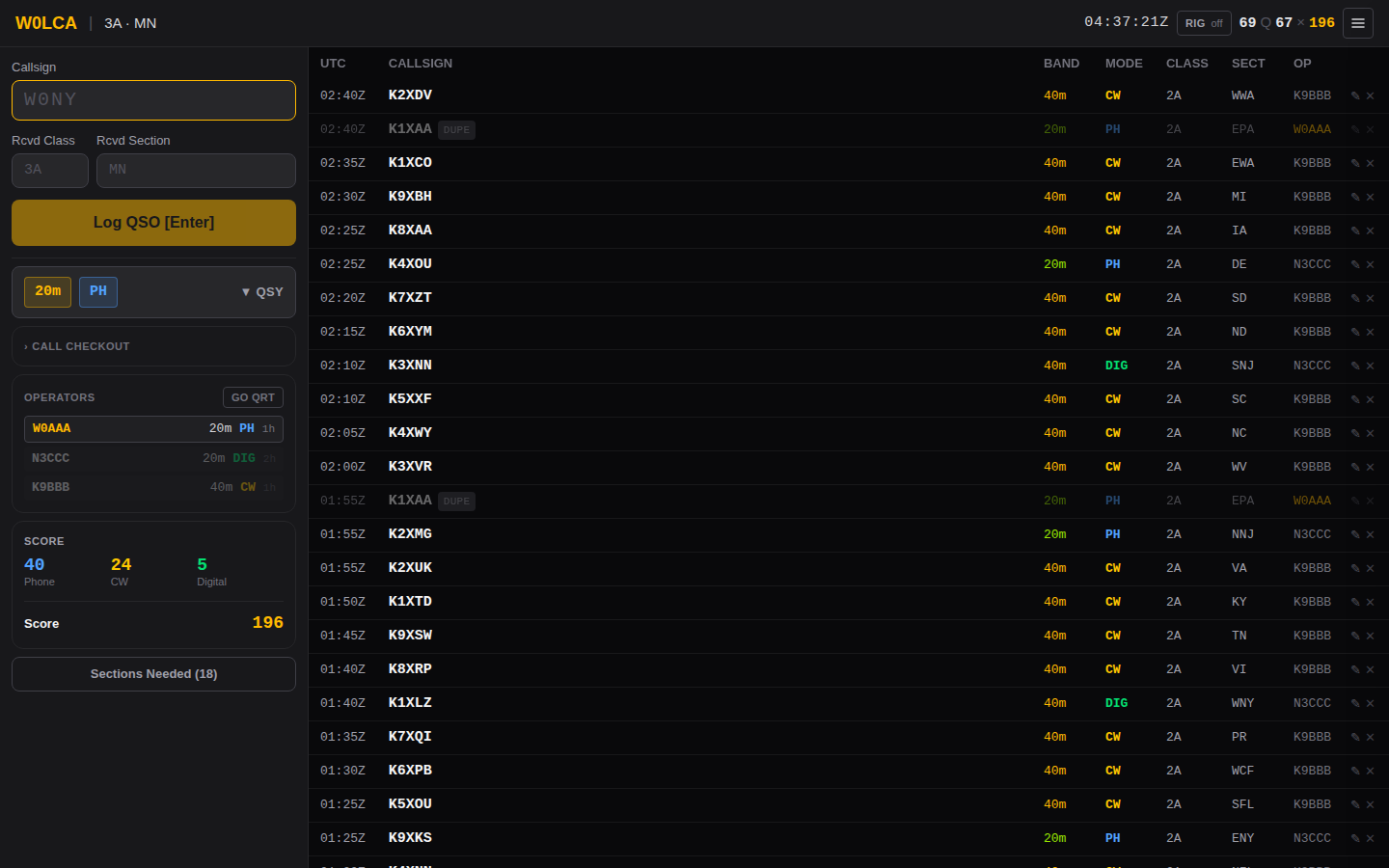
Focus starts in the callsign field and returns there after every logged QSO. The keyboard path is designed so a run never requires the mouse:
| Key | Where you are | What happens |
|---|---|---|
Enter |
Callsign | Move to the first exchange field |
Enter |
An exchange field | Move to the next one |
Enter |
The last field | Log the QSO, clear, focus the callsign |
Tab |
The last field | Wrap to the callsign, not the next page control |
That Tab behaviour is deliberate. The browser default would move focus into
the band buttons and out of the form entirely, which at 4 AM is how you end up
typing a callsign into nothing.
Hints while you type
After three characters, the app looks the callsign up in whatever sources the event enabled. Everything here is advisory — none of it blocks logging:
- QRZ — name, state, country, if the event has credentials.
- Call history — that station's usual class and section, from the N1MM file. Prefills the exchange fields, but only ones you haven't typed into yourself.
- MASTER.SCP — a
✓ known callsignmarker if the call is in the Super Check Partial list. - Unusual format — a warning if the callsign doesn't look like a callsign (no digit, no letter, too short). Plenty of real calls trip this; it's a prompt to double-check, not a refusal.
Lookups are debounced and the reply is checked against the callsign still in the field, so a slow response can't prefill the next station's QSO.
Band and mode
The QSY drawer holds a band grid and a mode selector. The collapsed button always shows the current band and mode, so a glance confirms where you are.
- Bands: 160m through 70cm, plus SAT.
- Modes:
PH(phone),CW,DIG(anything digital). - An orange dot on a band tile means another active operator is on it. Hover for who.
If a radio is connected, band and mode follow the VFO automatically and you can ignore this entirely — see Rig control.
Duplicates
The server decides authoritatively; the form shows a heads-up as you type. What counts as a duplicate depends on the event's dupe rule:
| Rule | A duplicate is | Typical use |
|---|---|---|
EVENT |
The same callsign on the same band and mode, at any point in the event | Field Day, Winter Field Day |
DAY |
The same callsign on the same band and mode, on the same UTC day | A special event running over weeks |
NONE |
Nothing is ever flagged | Events that don't care |
Duplicates are logged, not rejected. They're marked, excluded from scoring, and excluded from exports. Refusing them outright would lose the record of a contact that actually happened.
Who else is on
The Operators panel lists everyone currently signed in, with their band, mode, and time since their last QSO.
- A red row and a
!mean someone else is on your band and mode. - Operators idle more than 15 minutes grey out and stop counting toward conflicts, so a forgotten tab doesn't permanently block a band.
- Go QRT removes you from the list immediately rather than waiting for the timeout. Use it when you step away.
- The list shows about five at a time and scrolls inside itself past that, so a busy club does not push the rest of the panel off the bottom of the screen. You are always the first row.
Claiming a band and mode
Below the Operators panel is a second one that records intent rather than presence — somebody saying "this band and mode is mine for the next two hours" before anyone is sitting on it. What it is called, and what it means, depends on the event:
| Field Day and Winter Field Day | Special event | |
|---|---|---|
| Panel | Band coordination | Call checkout |
| What is held | A transmitter | The shared callsign |
| Held by | Station 2, whoever is sitting at it | The operator, by callsign |
| Do I have to? | No — it is optional | Yes, it is how the station runs |
On a contest nothing about the callsign is in question: every station sends the club's call all weekend and no operator needs anyone's permission to use it. What is being coordinated is the transmitter, because one signal per band and mode is a rule (Field Day 6.9, and the same in WFD). Claiming is opt-in, so a club that never opens the panel is never warned — the Operators panel above already answers "is anyone on 20m phone?" from live presence, with no discipline required.
On a special event the callsign is what is being handed around, often between operators in different places, so checking it out is the point rather than an option — see Special event stations.
Working offline
QSOs are written to browser local storage first, then sent to the server.
If the send fails the QSO stays queued, the header shows a pending count, and
logging continues normally. A queued QSO shows as Queued — syncing… until the
server confirms it.
The queue drains by itself, on whichever of these comes first:
- the browser regaining connectivity;
- the real-time stream reconnecting, which is the earliest sign the server is back — usually a second or two after it returns;
- a retry timer at 5s, 10s, 20s, 40s and then every minute.
You can also click the pending badge to retry immediately, but you shouldn't need to. That last point matters more than it looks: a server restart or an nginx reload leaves your own network up, so the browser never sees a connectivity change. The retry and the stream reconnect are what cover it.
Three consequences worth knowing:
- Nothing is lost to a flaky link, or to the server going away. This is the point of the design. It holds in the CW window too, and in the WSJT-X relay, which spools to a file on disk.
- Replayed QSOs bypass the special-event checkout gate. By the time the browser reconnects the reservation has expired, and the contact already happened on the air. Dropping it would only lose the record.
- A queued QSO is timestamped when the server accepts it, not when you logged it, because the server stamps every contact from one clock. A long outage therefore shifts those times.
Editing and deleting
The QSO table supports inline editing of callsign, band, mode and exchange. Duplicate status is re-evaluated after an edit. Deleting a QSO removes it everywhere in real time.
A queued QSO that hasn't synced yet can be deleted locally — it never reaches the server.
Deleting doesn't destroy anything. There is no authentication here beyond the join code, so anyone can delete any contact, and a log that couldn't answer "what happened to that QSO?" would make an accident indistinguishable from a contact never logged. A deleted contact leaves the live log, the exports and the score, and moves to Deleted contacts below the table, with who deleted it. Restore puts it back.
Night mode
One click dims the interface to 35% brightness with a warm tone, to preserve dark adaptation on an overnight shift. It's separate from the light/dark theme toggle and persists across sessions.
Reading the header
| Element | Meaning |
|---|---|
147 Q |
Non-duplicate QSOs |
31 × |
Sections worked (contest events only) |
| Amber number | Score before bonuses (contest events only) |
OFFLINE |
The browser has lost connectivity |
3 pending ↑ |
QSOs queued locally, click to retry |
Rig off |
No radio connected. Click to connect one |
● Rig 14.250 |
A radio is connected, and what it is tuned to |
CW |
The rig can key CW — opens the macro and keying window |
☰ |
The menu — everything else you can do |
A special event shows only the QSO count — there is no contest score.
The header is deliberately all status: things you read at a glance without acting on them. Anything you click to make something happen is in the menu.
Which station this window is appears at the top of the menu, beside your callsign, and only where the number can be wrong: a multi-transmitter entry, where you chose it at sign-in, or any window opened with Open station 2. A 1A club on its only radio has nothing to confuse and does not see it. Check it before you start a shift — every contact you log carries that transmitter number into the Cabrillo export, and the export is where a wrong one used to first show up. The CW keying window shows the same badge, which is what tells two of them apart when you are running two radios.
The menu
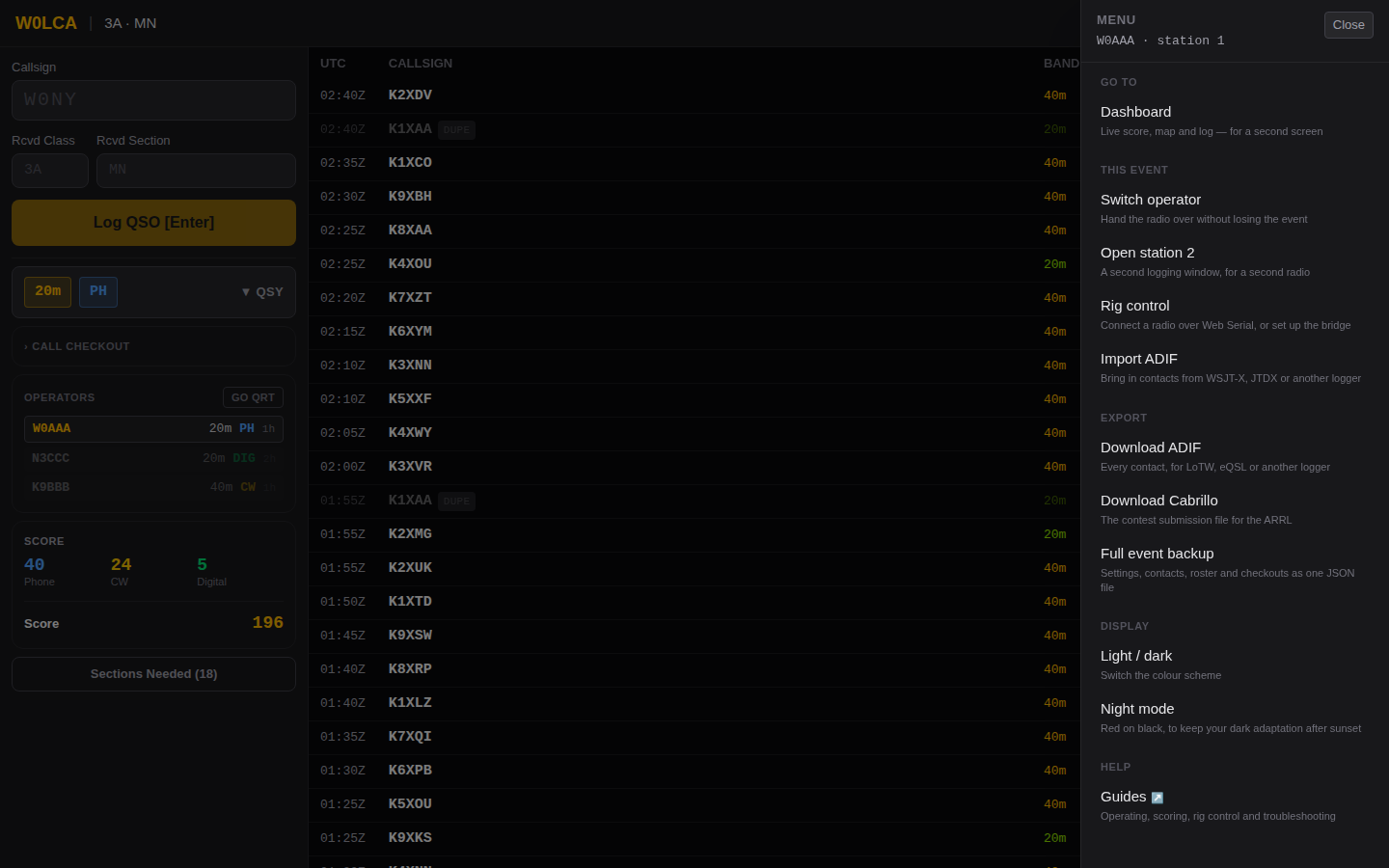
Everything you can do is behind ☰ in the top right, on the logger and the dashboard alike, at every screen size. Each entry says what it is, because "ADIF" and "Backup" both look like a download until something tells you which is which.
| Group | Holds |
|---|---|
| Go to | The dashboard, or back to the logger |
| This event | Switch operator, open a second station, the CW window, rig details, Import ADIF |
| Export | ADIF for uploading, Cabrillo for submitting, and the full event backup |
| Display | Light/dark, and night mode |
| Help | These guides, in a new tab |
Entries appear based on what your event and your radio actually are, never on the size of your screen. A special event is offered no Cabrillo file and no ARRL summary sheet, because neither exists for one. The CW window appears only when a rig that can key CW is connected. A read-only visitor is offered no files at all.
Escape closes it, and the whole menu is reachable by keyboard: Tab moves through it, Enter opens an entry, and focus returns to ☰ when it closes.
This used to be split across two rows of buttons that disagreed with each other. Which controls you got depended on how wide your browser was, and not on purpose: the guides were reachable only on a phone, while Import ADIF, both exports and the second-radio window were reachable only at tablet width and up. If you have been logging from a phone and could not find the export, that is why — it is in the menu now.
The dashboard
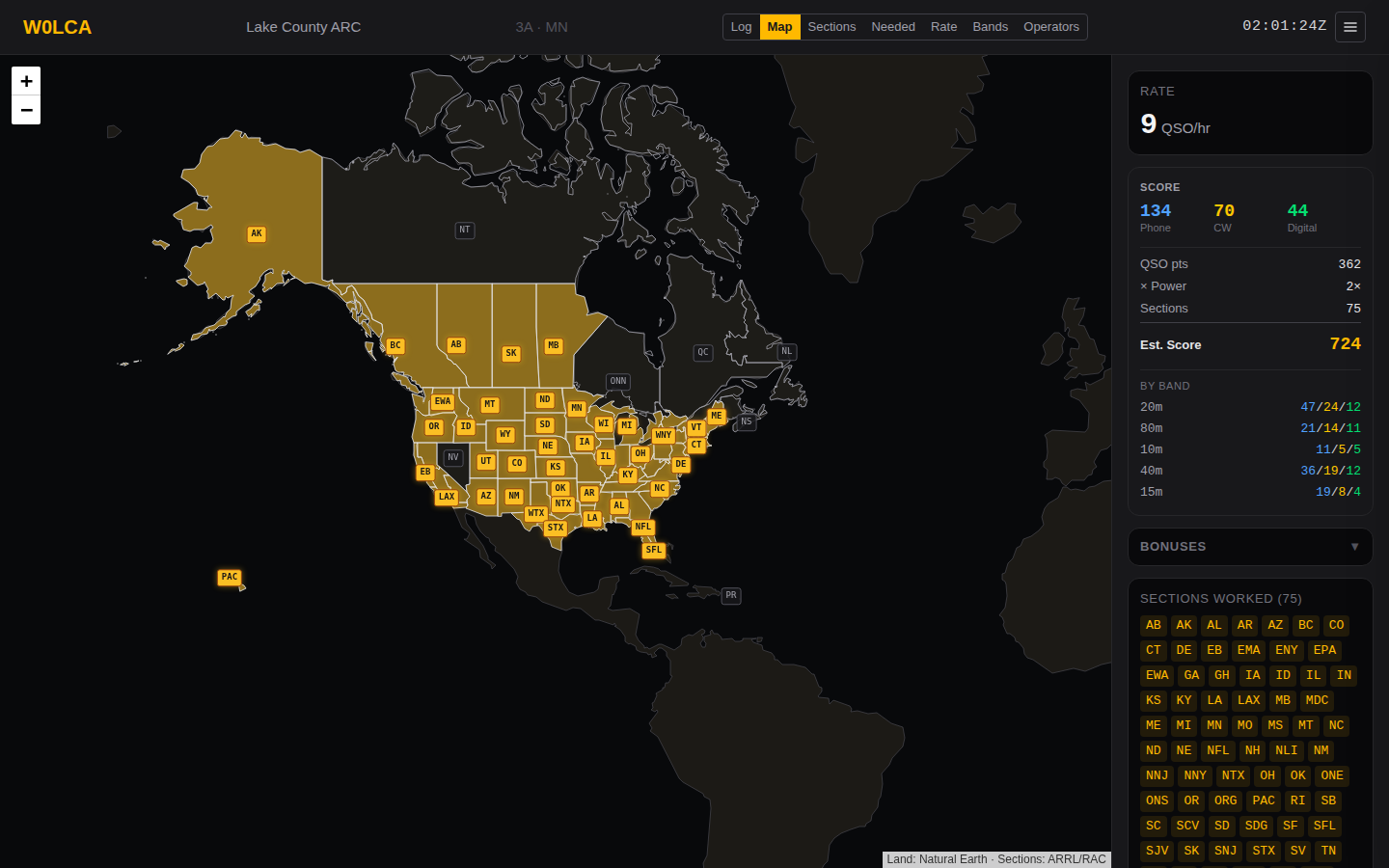
A separate read-only view for a second screen. It opens on the Log:
- Overview — the one to put on a screen at the site: score, map, join code and which bands are free
- Log — every contact, filterable, with the columns you choose
- Map — worked sections plotted geographically
- Sections / Needed — grid of sections worked and the hunt list
- Rate — QSOs per hour, with gaps visible
- Bands — band × mode matrix
- Operators — who worked what: contacts, rate, bands and sections
- Summary — printable ARRL-style worksheet
Special events show Log, Rate, Bands, Operators and a live On The Air list instead of the section-based views, which don't apply.
The Overview
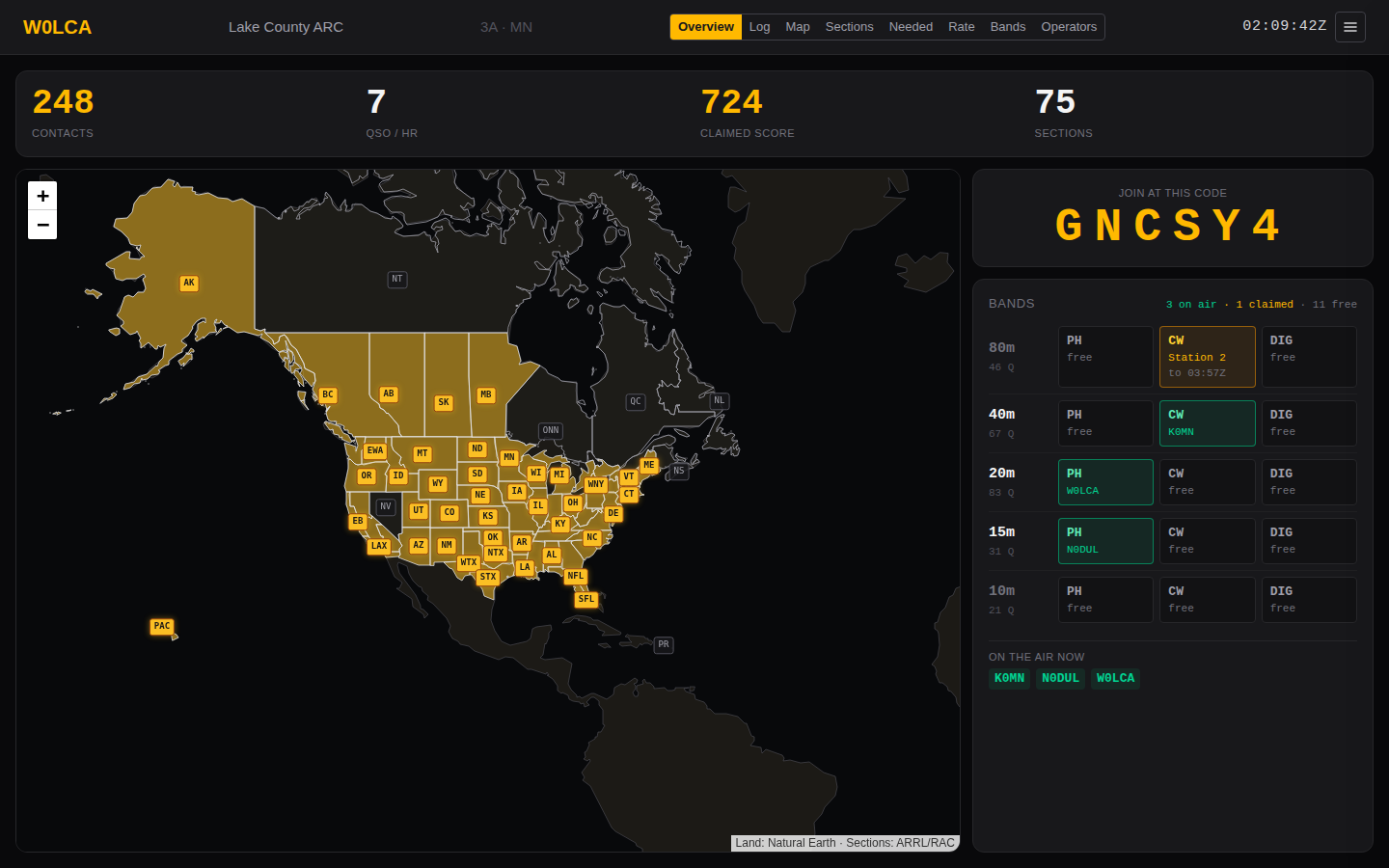
The view for a monitor in the tent. Everything else on the dashboard answers a question somebody asked; this one is for the person who walked past and has not asked anything, so it is laid out to be read from a few feet away rather than scanned.
Four things, and nothing else:
- The figures across the top — contacts, the rolling-hour rate, the claimed score and sections worked. A special event has no contest score, so it shows contacts split by mode instead.
- The map, so the shape of what you have worked is visible without counting. Special events don't have one.
- The join code, large. It is the most-asked question at a site and the usual reason a screen goes up at all.
- The band board — every band in use, each with its three modes.
The band board is the part worth explaining. Each cell is a band and a mode, and it is one of three things:
| Cell | Means |
|---|---|
| Green, with a callsign | Somebody's logging window says they are on it right now |
| Amber, with a holder and a time | Booked, but nobody is there yet |
| Grey, free | Nobody has it and nobody is on it |
Somebody being on the air outranks the booking. A band that is both claimed and occupied shows green with whoever is actually there, because the question this view answers is where are the gaps — and a band with an operator on it is not a gap, whatever the checkout board says. The claim is still there; it is simply not the useful fact at that moment.
Bands nobody has touched and nobody has booked are left out, so the board stays short enough to read. At the start of an event, when that is every band, the first few are shown anyway rather than leaving an empty panel. The line above the board — 3 on air · 1 claimed · 11 free — counts the rows you can see.
On a contest, claiming a band is optional, so most cells read free even at a busy site; green is the honest picture there, because it comes from operators' logging windows rather than from anybody remembering to book a slot. On a special event, where the checkout is how the shared callsign is handed around, the amber cells are the roster.
This is the one view without the side panel. It prints the join code itself, and having the same code twice on one screen is how a reader ends up trusting neither copy.
On a phone the dashboard is one scrolling page. The tabs stay pinned at the top as you scroll, and the score, bonuses, sections worked, operators and join code are laid out in full below the view rather than in a panel of their own. The log and the operators table keep their own scroll, because those are tables and have no natural end — everything else you reach by scrolling the page.
The Map view
Sections are drawn as their real boundaries, filled amber once you have worked them, so "what have we got, and where are the gaps" is one glance rather than a count. The label boxes stay on top — Rhode Island and Delaware are smaller than their own names at this zoom, and the whole US Pacific section is a few specks off the left edge.
The fill tells you whether a section is worked; the border tells you where it ends. Those are separate, which is why a run of worked sections still reads as a row of sections rather than one amber blob, and why the map needs no colour of its own per section. Worked sections carry the stronger border, so the outline of what you have done is the line that stands out.
Hover or tap any section to get its name and whether you have worked it. That works on the shape itself, not only on the small label.
Labels thin out when they would overlap. At the opening zoom a dozen north-eastern sections are smaller than their own abbreviations, so drawing every label there produced a pile of boxes rather than anything readable. Zoom in and the rest appear — nothing you have seen disappears as you go in, and no section is ever unidentifiable, because the shape answers on hover regardless.
Ontario's four — GH, ONE, ONN and ONS — are drawn from RAC's own boundaries, which are census divisions rather than the counties ARRL uses everywhere else.
Nipissing District is drawn as one dashed outline labelled ONE or ONN, because RAC splits it along Algonquin Park: the part inside or south of the park is Ontario East, the rest is Ontario North. That is the only boundary on the map that is not an administrative line somebody else surveyed, so it is the only one not drawn. Dashed and neutral means "we do not know where this line runs" — which is not the same as "nobody has worked it", and the map would look equally confident either way. Hover it to see which two sections share it.
Nothing about this changes what a contact counts for. If you worked a station in Nipissing, log the section they sent you; the grid, Sections Needed, the score and every export use that and are unaffected.
The whole map ships with the app. The section boundaries and the land underneath them are both files in the application, not tiles fetched from a map service, so the map draws in full on a field server with no internet — the same map it draws on a hosted one. There is nothing to configure, no account to sign up for and no key to hold.
The Log view
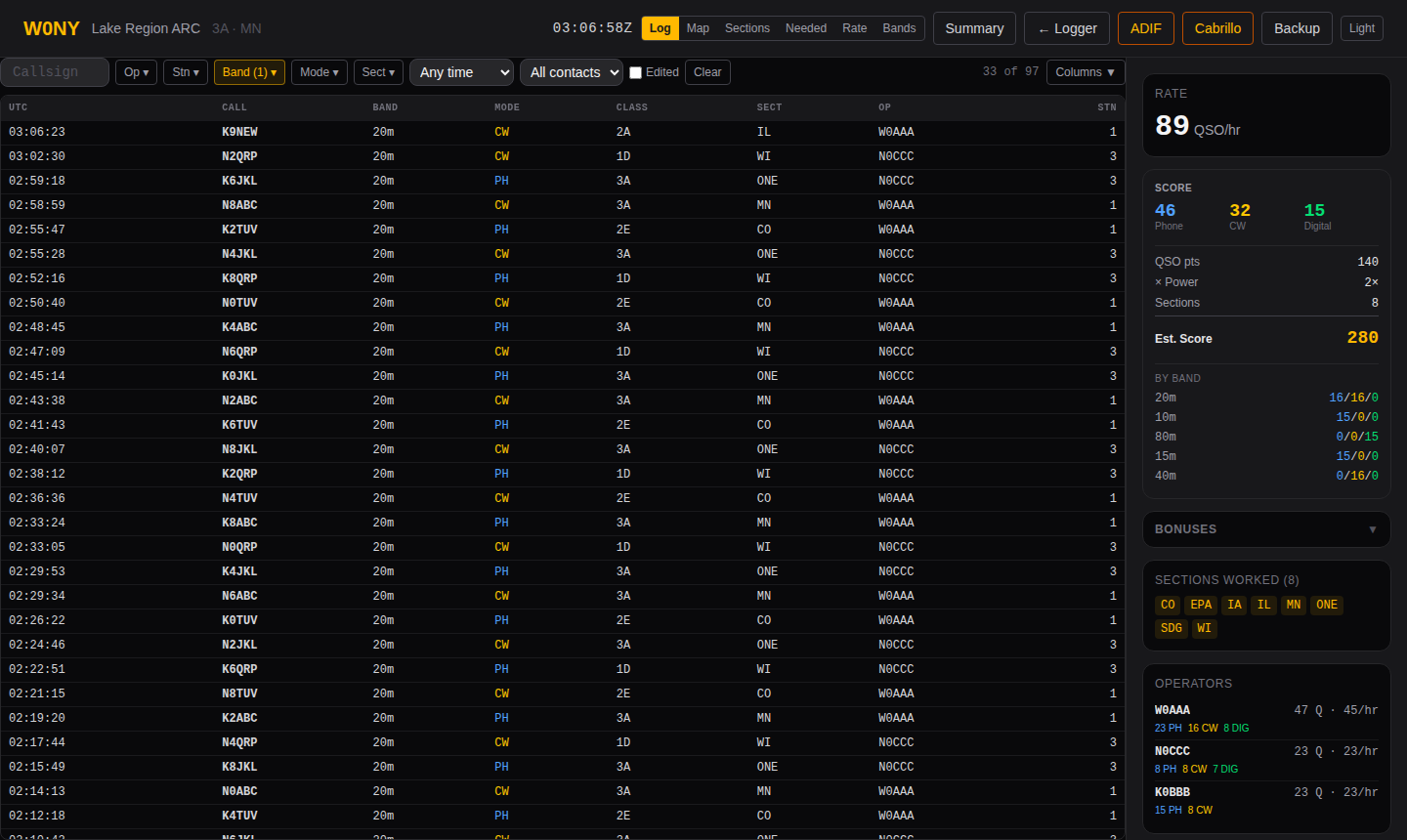
The whole log in one table. Two things it is for: answering a question about the log without exporting it mid-event, and putting a live log on a screen at the site.
Filters combine. Pick any of them and the count beside the filter bar shows
what survived — 33 of 97 above. Clear appears once anything is active.
| Filter | Finds |
|---|---|
| Callsign | Any contact whose call contains what you type, so K1AB matches K1ABC and K1ABC/P |
| Op | One or more operators. Contacts with no operator recorded — an ADIF import — match only when this is off |
| Stn | Which radio logged it |
| Band · Mode · Sect | Only the values actually present in your log, not every possibility |
| Time | The last 15 minutes, hour, or four hours |
| Dupes | Show all, hide them, or show only the duplicates |
| Edited | Only contacts changed since they were logged — a reader for the audit trail |
Unrecognised sections are offered in the Sect filter alongside the real ones. That is deliberate: a typo is exactly the thing you open this view to find and correct, so filtering it out would defeat the purpose. Fix it from the logging screen's log table, which is where editing lives.
Columns picks what to show. The defaults differ by event type — a contest gets class and section, a special event gets RST, name and grid, because an SES has no contest exchange and those columns would be empty on every row. Your choice is remembered in that browser and does not affect anyone else, so the laptop driving the projector can show a different set from the one at the operating position. Reset puts the defaults back.
A contact logged while you are watching flashes briefly as it arrives, so a projected log reads as live rather than as a static table that silently changes. Nothing moves — only the background — and the flash is suppressed entirely for anyone whose system asks for reduced motion.
The view is read-only. Editing and deleting stay in the logging screen, along with the audit trail that records them.
The Operators view
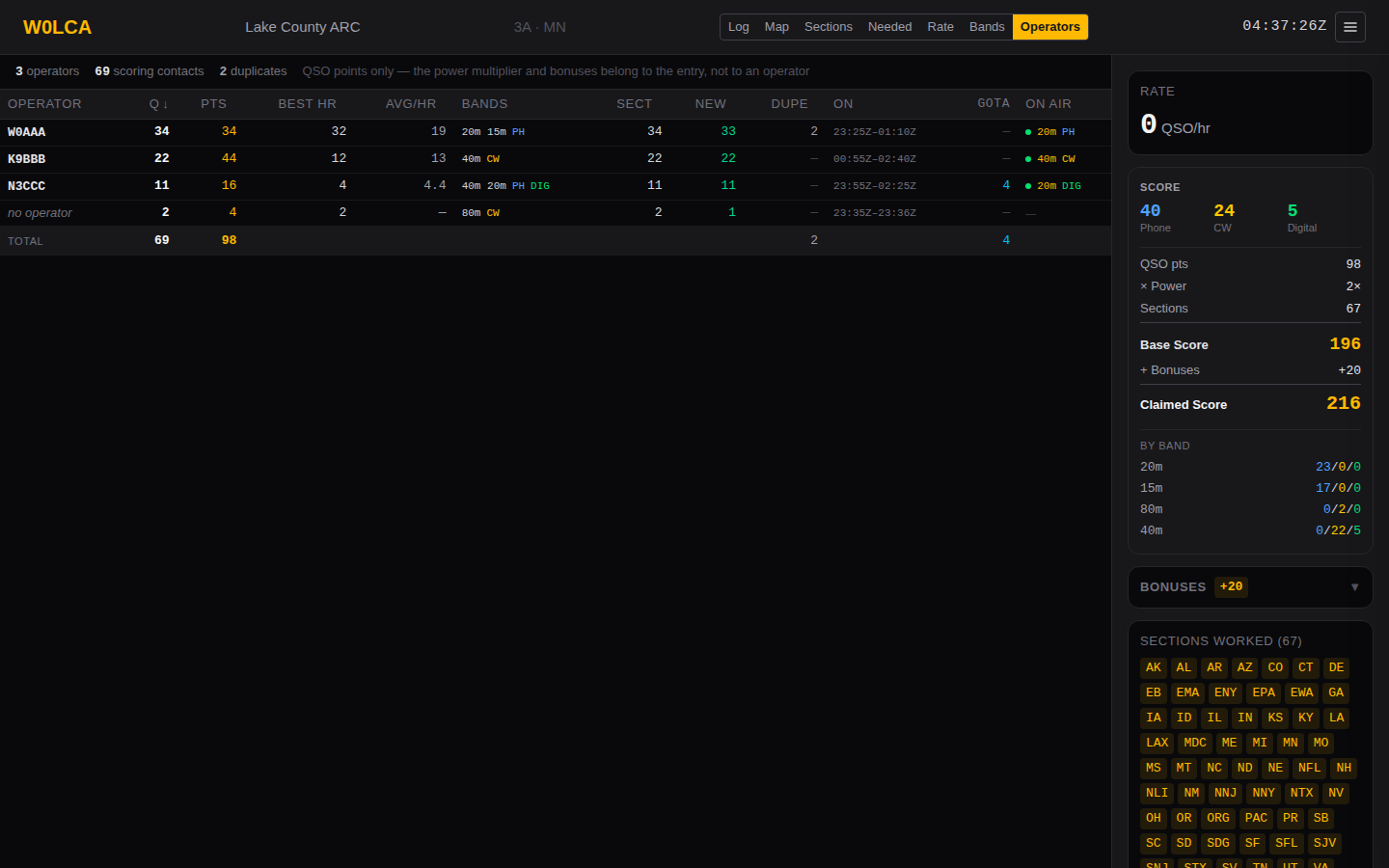
Who worked what, over the log you already have. Nothing here is recorded separately or has to be turned on — every figure is read back out of the contacts.
| Column | Is |
|---|---|
| Q | Scoring contacts. Duplicates are not in it |
| Pts | QSO points those contacts are worth — 1 a phone contact, 2 a CW or digital one |
| Best hr | The most contacts this operator made in any 60 minutes |
| Avg/hr | Contacts per hour from their first to their last. Blank until those span an hour |
| Bands | Every band they worked, and the modes |
| Sect | Sections they worked |
| New | Sections nobody had reached yet when they worked them |
| Dupe | Duplicates they logged. Not in Q, not in Pts |
| On | First and last contact, UTC |
| On air | Where their logging window says they are now, if they are signed in |
Click any heading to sort by it. A special event has no sections, so those two columns are not shown on one.
Best hr and Avg/hr are different questions and often different numbers. An operator who takes 60 in their first hour and then holds a quiet band for three more has a best hour of 60 and an average of 15. The first describes the run, the second describes the shift; neither is wrong, and the sidebar's Operators panel shows the best hour.
Avg/hr stays blank for the first hour. A figure per hour needs an hour to average over: divide two contacts by the four seconds between them and you get 1,800 an hour, which is not a rate anybody worked — it is a fraction of a minute projected out to sixty. Best hr has no such problem, because it counts what happened rather than extrapolating from it, and it is the number to read early in a shift.
New is the column that says who brought something in rather than who did the most. A section belongs to whoever reached it first, so every section in your log is somebody's — the column adds up to the sections-worked total.
Reading the totals row
The row at the bottom is there to be checked. Its contacts and points should match the scoreboard, and two things would otherwise stop them:
- Contacts with no operator get a row labelled
no operatorrather than being dropped. Those come from an ADIF import, which carries no operator callsign. It sorts last whatever you sort by, because it is a pile of contacts and not a person — and it is not counted in the operator count. - Duplicates are counted, in their own column, and left out of everything else. Hiding them entirely would make an operator's row disagree with what the Log view shows for the same operator.
Pts is not a score. It is QSO points before anything is done to them. The power multiplier is a property of your entry and a bonus is earned by the club, so neither is split between people — adding the column up will not give you the claimed score, and is not meant to.
Somebody signed in who has not logged anything yet gets a row saying so, so the table shows everyone at the site rather than only the ones with contacts.